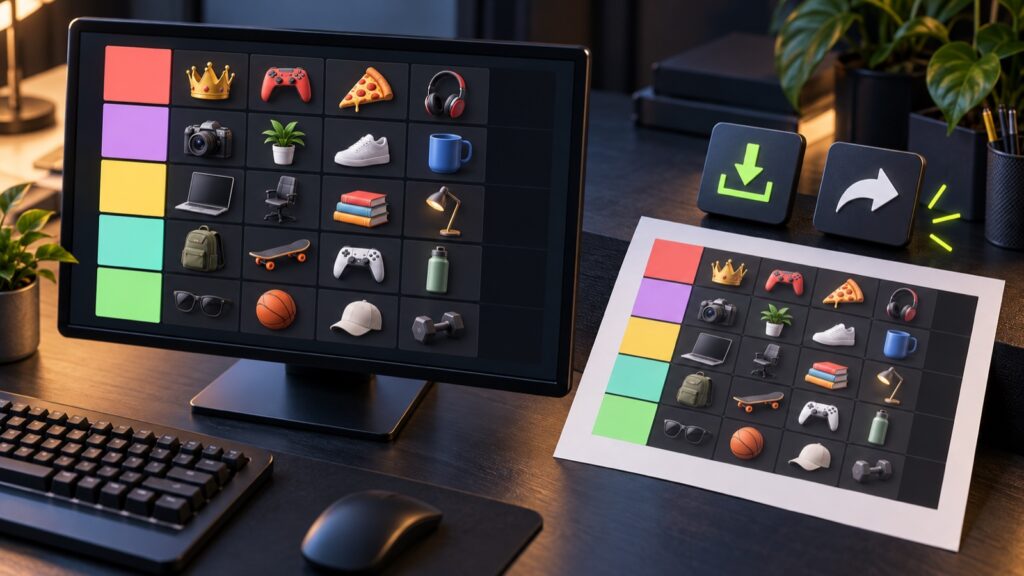
A finished tier list can be used in two different ways: download it as an image or share a public link. An image is convenient for posting in a chat or on social media. A link lets someone open the list’s own page.
Download a PNG image
In the tier list maker, add images and drag at least one into a tier. Enter a title and choose a category, then press Download. The editor exports your board as a PNG file.
Check the board before exporting. Make sure no item is still waiting in the library by accident, tier names are correct, and image-heavy rows are easy to read. A clear title also makes the downloaded file easier to find later.
On TierListMakerHQ, downloading from the maker also submits the tier list for review. Do not assume that the downloaded image immediately has a public page.
Share a public list
After a tier list is approved and published, open its page. You can use Copy link or the sharing buttons below the list. The public page also offers Download image, so visitors can save the ranking itself.
Share the public page when you want people to see the list in context. Share the PNG when you want the ranking displayed directly inside a post or message. If you are sharing somebody else’s list, link to their page rather than presenting their image as your own work.
Make your list readable when shared
A tier list may appear as a small preview in a social feed. Use short tier labels, recognizable images, and a title that explains what is being ranked. “Favorite game characters” is clearer than “My list,” while “Game characters ranked by story impact” tells readers exactly how to interpret it.
Ready to try it? Start a new tier list or choose a template.